
Editor overview
Open a Book and you see two things: its typed properties — Author, Pages, Date — and a free-form body for your reading notes. Every Object page works this way. The Object Type decides which properties appear and whether the Object has a body at all; a Person, for example, can be purely structured.
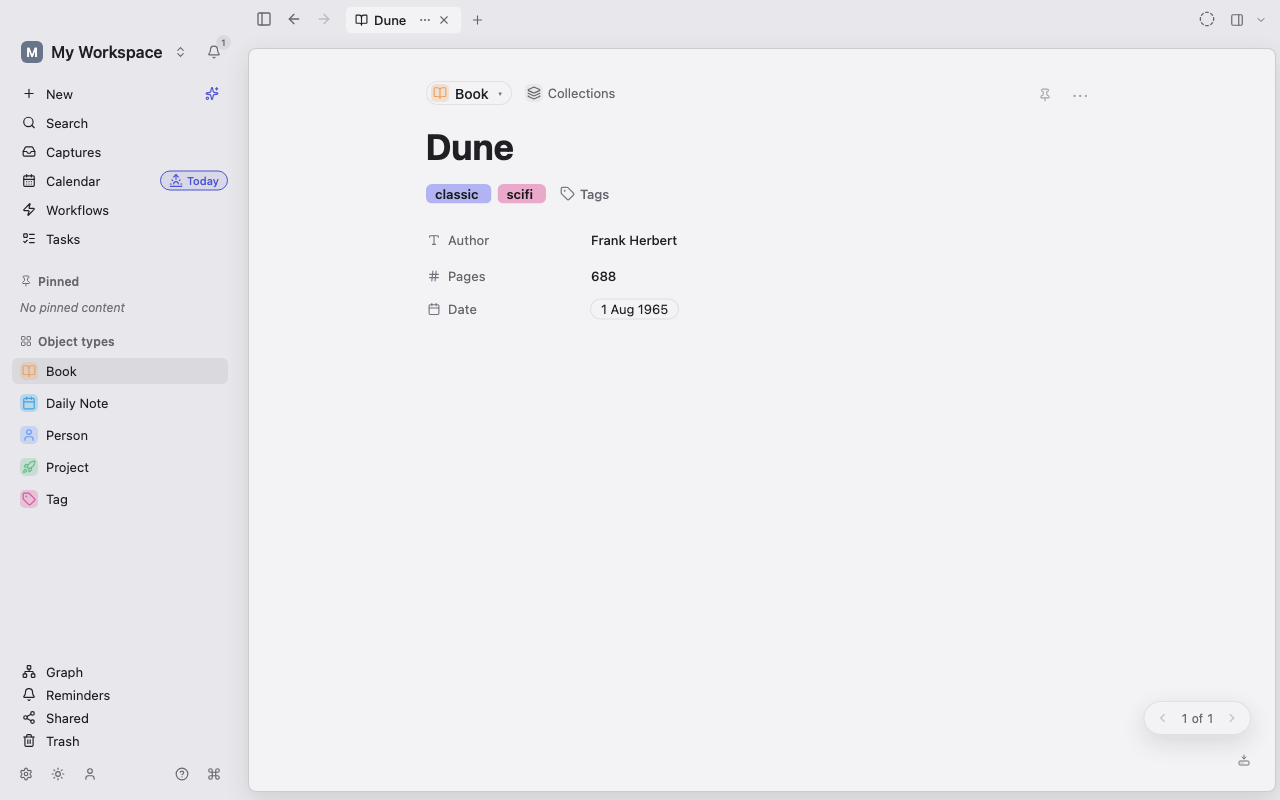
Parts of an Object page
Section titled “Parts of an Object page”- The header holds the title, Type, tags, and the ⋯ menu (More actions) with page-level actions.
- The property area shows typed fields and relations, arranged by the Type’s page layout.
- The body holds paragraphs, lists, tables, media, embeds, and other blocks.
- The side panel shows the Object’s details — outline, backlinks, unlinked mentions, version history — along with related content, the graph, and AI chat.
Lar saves every edit automatically to your device, encrypted at rest. There is no Save command; the save-state indicator shows when changes are persisted.
Start writing
Section titled “Start writing”Select the body and type. These shortcuts cover most of what you’ll reach for:
| Type | To |
|---|---|
/ | Open the slash menu and insert a block |
[[ | Link to another Object |
![[ | Show another Object’s content inline |
(( | Reference a single block |
#tag | Tag the Object with a Tag |
Use the gutter handle beside a block to move it or open its action menu. See Blocks and formatting and Links and transclusion.
Page and edgeless modes
Section titled “Page and edgeless modes”Page mode is a linear document; edgeless mode is a spatial canvas. Open the ⋯ menu and choose Page mode or Edgeless mode, or press Ctrl+Shift+E. Lar remembers the mode per body. See Page and edgeless modes.
Keep context while you work
Section titled “Keep context while you work”- Tabs keep several Objects open.
Ctrl+Tabcycles through them and Ctrl+W closes one. - The side panel (Ctrl+\) keeps backlinks, related content, or AI chat beside the current page.
- Focus mode (Ctrl+.) hides everything but the Object. See Find, outline, and focus mode.
Next: Blocks and formatting.