
Search and the command palette
Half-remember a book title from last spring? Type a few letters into the command palette and open it. Need every Book tagged sci-fi that mentions “terraforming”? Open the full Search page, add the filters, and save the result as a Query you can come back to. Lar has two related search surfaces:
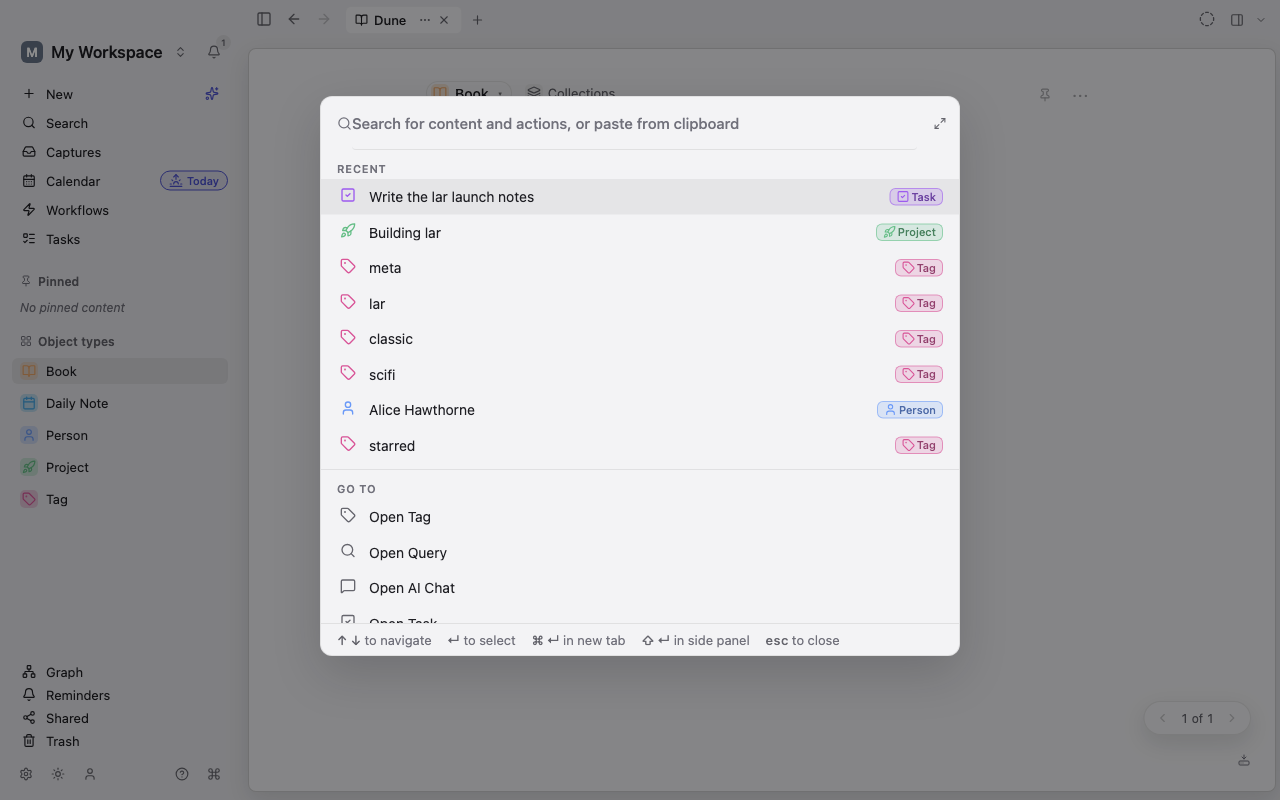
- The command palette is the fastest way to find an Object or run an action without leaving what you are doing.
- The full Search page gives you filters, matching controls, multiple layouts, and the option to save the search as a Query.
Open the command palette
Section titled “Open the command palette”Press Ctrl+K, Ctrl+P, or Ctrl+T. You can also choose Search in the sidebar or floating navigation bar. On a compact screen, Search opens the command palette first rather than navigating straight to the Search page.
When the query is empty, recently opened Objects appear first. Start typing to search both content and actions. The palette can show:
- live Object matches, with their Object Type;
- recently opened Objects;
- navigation commands such as Open Calendar, Open Tasks, Open Graph, and Open settings;
- creation commands, including Quick capture…, Define a new Type, and New from template;
- commands that apply to the current Object, such as Add reminder to current Object…, Export current object…, or Run workflow: followed by a workflow’s name.
If nothing at all matches your text, choose Create “your text” to open Quick capture with that text as the title.
The palette returns at most 50 entries. Its ranking combines command matches, recent Objects, and live workspace search results.
Navigate without the mouse
Section titled “Navigate without the mouse”- Use ↑ and ↓, or Ctrl+P and Ctrl+N, to move through results.
- Press Enter to run the selected command or open the selected Object.
- Press ⌘+Enter on macOS, or Ctrl+Enter on Windows and Linux, to open an Object in a new tab when that action is available.
- Press Shift+Enter to open an Object in the side panel when available.
- Press Esc to close the palette.
When the palette was opened specifically for the side panel, plain Enter opens an Object there.
Move from the palette to full Search
Section titled “Move from the palette to full Search”Choose the expand button (Open wide in Search) beside the palette field. Lar carries the current text into the full Search page, so you can refine it without typing it again.
The full page searches after a short pause while you type. Results normally appear as a list with a matching excerpt. An Alias match label means an Object matched one of its aliases rather than its title or body.
On wider screens, use the layout control to switch among:
- List, which includes matching excerpts and tags;
- Wall, for compact cards;
- Gallery, for visual cards.
Compact layouts always use the List view. Search results can contain several Object Types, so Table, Kanban, and Calendar layouts are not offered here.
Choose how text is matched
Section titled “Choose how text is matched”Open Options beside the search field, then choose a matching mode:
- Auto and Exact currently use Lar’s indexed text search.
- Semantic looks for meaning rather than only matching words. It requires semantic search to be turned on and indexed in Settings → AI provider → Semantic search.
The Show row offers Objects and blocks, Only objects, and Only blocks. Lar currently returns an Object-level result list for all three choices; a block match appears as an excerpt under its Object. The selection is preserved when you leave an Object and return to Search.
Filter the result set
Section titled “Filter the result set”In Options, you can:
- Filter object types to include only selected Object Types;
- Exclude object types to leave selected Types out;
- Filter by tags to require one or more tags; and
- Limit results to a count, taking either the first results or a random sample.
Selecting several tags uses an all tags rule: an Object must have every selected tag. Type and tag filters apply after the base text or semantic search.
The default result limit is 25. Lar may inspect a larger candidate set before applying filters and the final limit.
Save a search as a Query
Section titled “Save a search as a Query”Choose Save as Query on the full Search page. The saved Query keeps:
- the search text;
- included Object Types;
- included tags;
- the result limit.
The live Search page’s excluded-Type and random-sampling choices are not stored in the saved Query. Open the new Query if you want to add property filters, sorting, grouping, or a different view.
Create an Object from no results
Section titled “Create an Object from no results”If Search finds nothing, choose Create “query”. Lar creates a Page with the query as its title. This is useful when searching is also your preferred capture workflow: search first to avoid duplicates, then create only when nothing exists.
Search troubleshooting
Section titled “Search troubleshooting”If expected content is missing:
- Clear included and excluded Object Types.
- Remove tag filters.
- Increase or remove the result limit.
- Switch Semantic back to Auto to check the text index.
- Search an alias or a distinctive phrase from the body.
If Semantic matching is unavailable or incomplete, open Settings → AI provider and review the Semantic search group. Ordinary indexed search remains local and does not require an AI provider.
Next: Graph and related content.