
Calendar and events
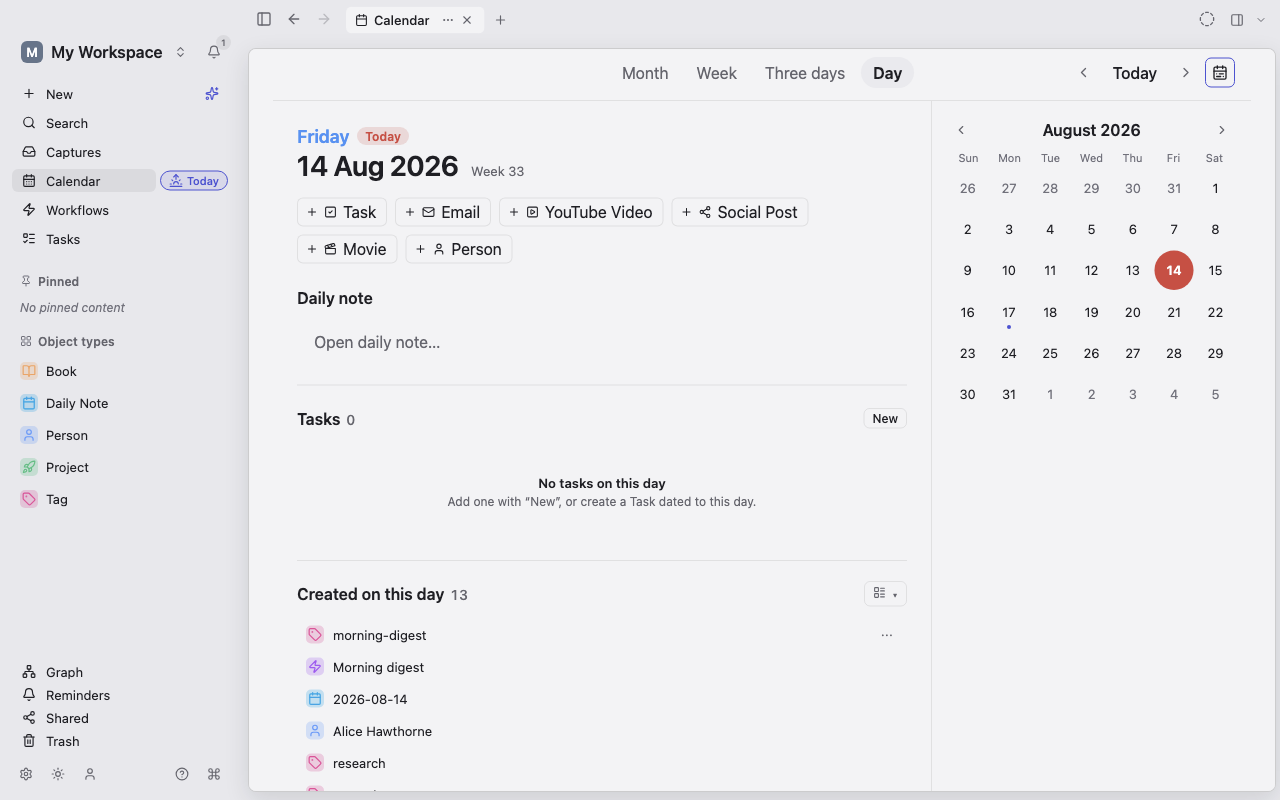
Open the Calendar on a Monday morning and you see today’s Daily Note, the Tasks due today plus anything overdue, the Meeting Events from your work calendar, and the notes you created on this date last year, all in one scrolling feed.
The Calendar works with any Object Type that has a Date or Date & time property, not only the built-in ones.
Open the Calendar
Section titled “Open the Calendar”Choose Calendar in the sidebar, or run Open Calendar from the command palette. Then pick a view at the top:
- Agenda is a continuous, scrolling feed of days. Today opens in full; other days show as one-line summaries that you can expand. Runs of empty days collapse into a single “quiet days” row.
- Month shows a strip of months and preview cards for each Daily Note in the selected month.
- Week shows one column per day, with quick-create buttons and the day’s Daily Note.
In Month and Week, use the previous and next buttons to move, and Today to come back. Agenda scrolls instead: use Jump to date (Ctrl+J), or select a day in the activity heatmap at the top.
On a phone or in a narrow window, the Calendar shows a swipeable week strip. Below it, the Daily Note, Tasks, and Timeline tabs show the selected day.
See what’s on a day
Section titled “See what’s on a day”An expanded day in Agenda can show:
- the Daily Note, or a Start the daily note card if there isn’t one yet;
- open Tasks dated that day, with Add task to create another;
- on today, overdue open Tasks, each labeled with the day it was carried from;
- On this day: Objects whose Date or Date & time property falls on the day;
- Created on this day: Objects first created that day;
- This day in history: Objects created on the same date in earlier years.
Tasks appear only in the Tasks list, not again under On this day.
To narrow the feed, open Filter by type in the Agenda toolbar and hide the Types you don’t want to see.
Create an Object for a day
Section titled “Create an Object for a day”The Agenda toolbar and each Week column show quick-create buttons, such as + Task or + Meeting. Choose one to create an Object with its date already set to that day. The new Object opens right away so you can fill in its title and other fields.
For a Date & time property, Lar picks a default time on the chosen day.
To control which Types get a quick-create button:
- Open the Object Type’s settings.
- Choose Calendar. This page appears only when the Type has a date property.
- Under Create object from calendar, choose Show, Show for one per day, or Hide.
- Optionally turn on Hide objects of this type in the calendar sidebar to keep the Type out of the On this day lists.
In Week view, use the eye button to hide or show the quick-create row.
Reschedule by dragging
Section titled “Reschedule by dragging”Drag a Task or dated Object onto another day. Lar updates the date property that placed it there and keeps any time of day. For a dated Object, you can also choose Move to day… on its row and pick Today, Tomorrow, Next week, or Next month.
To move a whole day’s open Tasks at once, use Move all open tasks to in that day’s header.
Rescheduling changes only the date property. The Object’s creation date stays the same.
See Tasks for deadlines, recurrence, and the Task dashboard.
Subscribe to an ICS calendar
Section titled “Subscribe to an ICS calendar”Bring a read-only calendar into Lar, such as a team calendar or a public holidays feed.
- Open Settings → Calendar feeds.
- Paste the ICS or webcal link into Calendar feed URL.
- Optionally enter a name.
- Choose Subscribe.
- On the new subscription, set Sync as to the Object Type that new events should become.
Subscribing lets Lar fetch that URL on a schedule. Nothing you write in Lar is sent back. Each subscription shows its last refresh status; choose Refresh now to fetch immediately.
Changing Sync as affects only events imported from then on. Choose Remove to stop refreshing a feed. Events already in Lar stay.
Connect Google, Microsoft, or CalDAV
Section titled “Connect Google, Microsoft, or CalDAV”In the desktop app, Settings → Calendar feeds also has a Calendar accounts group:
- Google, using your own Google Cloud OAuth client;
- Microsoft, using your own Azure AD app registration (public client, no secret needed);
- CalDAV, using a server URL, username, and app-specific password.
After you connect:
- Choose Load calendars, then pick a calendar.
- Turn on Two-way sync if local changes should go back to the provider.
- Optionally turn on Push new local events.
- Choose Sync now to sync immediately.
Read-only remote calendars are marked (read-only) and never receive local changes. If an account shows Needs reconnect, choose Re-connect and sign in again.
Removing an account deletes its stored credentials and stops syncing. Events already in Lar are never deleted.
Open a day’s Daily Note
Section titled “Open a day’s Daily Note”Each day has at most one Daily Note. Choose its card on the day to open it, creating it first if needed. Use the ⋯ menu in the day’s header to create it from a template. See Daily Notes.