
Tasks
Type Call the dentist tomorrow 2pm !! and Lar creates a medium-priority Task dated tomorrow at 2 PM, with a reminder set for that time. Link it to your Health Project as its context, and it shows up under Scheduled, on tomorrow in the Calendar, and in the Project’s backlinks.
Tasks are typed Objects. Like any other Object, a Task can have a body, tags, links, and custom properties. The Tasks page adds scheduling and completion tools on top.
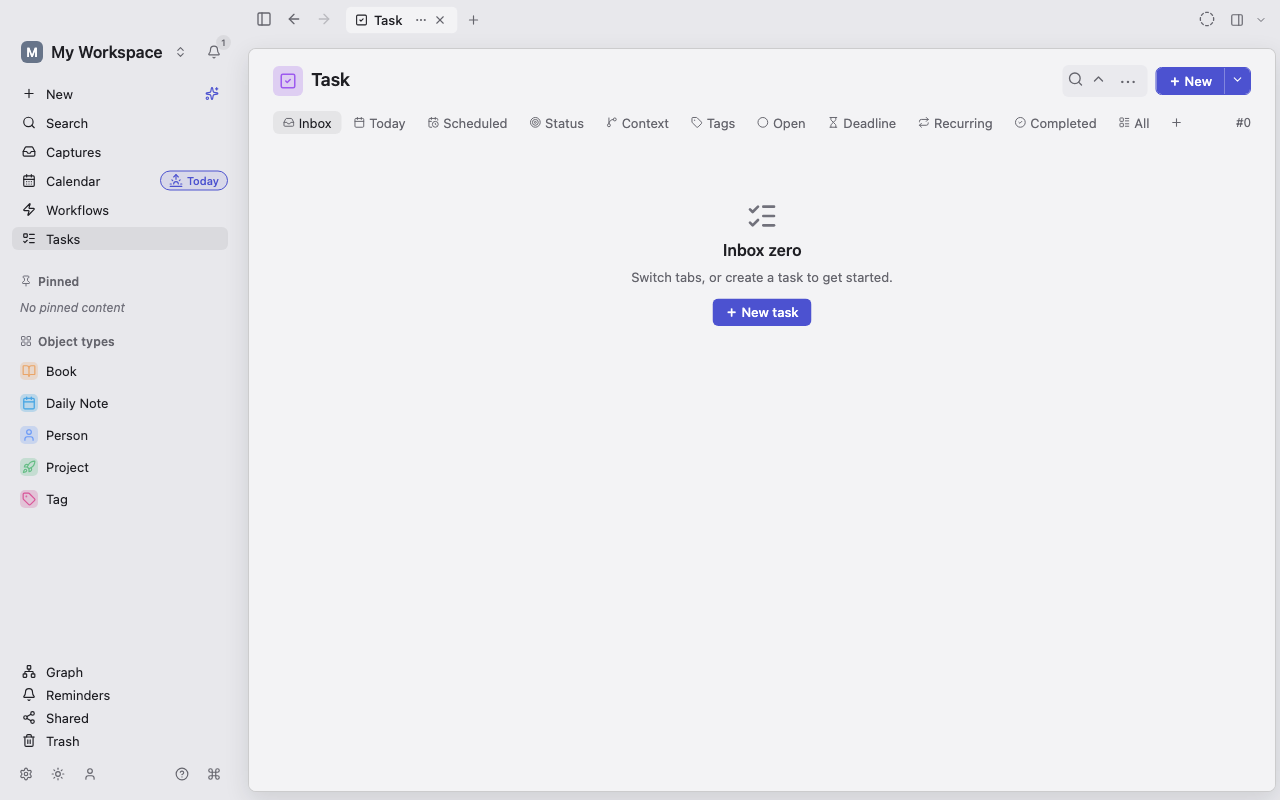
Show or hide the Tasks page
Section titled “Show or hide the Tasks page”Task management is on by default. It adds Tasks to the sidebar and a New task action to the compact Create sheet.
To turn it off, open Settings → Task management and clear Enable Task management. Your Tasks stay, and Task goes back to being an ordinary Object Type in the sidebar list. This setting applies to the current device only.
Create a Task
Section titled “Create a Task”- Open Tasks.
- Choose New task… at the bottom of a list, or + New task in an empty tab.
- Type a title.
- Optionally set status, date, deadline, priority, context, and repeat rule.
- Choose Add task to create it and stay in the list, or Open to create it and open the full Object editor.
In the dialog, Enter adds the Task and Ctrl+Enter creates it and opens it.
Type dates and priority into the title
Section titled “Type dates and priority into the title”Lar reads a few trailing words from the title and shows what it found before you create the Task:
- Dates:
today,tomorrow,next week,in 3 days,friday,aug 1, or2026-10-05. - Times:
2pm,at 14:30. - Priority:
!for Low,!!for Medium,!!!for High.
Press Esc to keep the text exactly as typed. Values you set with the controls always win over parsed ones. The date field itself also accepts phrases such as “next week at 3 pm”.
A Task you create from a tab starts with that tab’s value: Today sets today’s date, Scheduled sets tomorrow, and Deadline sets a deadline of 5 PM today.
Use the Task tabs
Section titled “Use the Task tabs”| Tab | Shows |
|---|---|
| Inbox | Open Tasks with no date and no deadline |
| Today | Open Tasks dated today |
| Scheduled | Open Tasks dated after today |
| Status | Open Tasks grouped by status |
| Context | Open Tasks grouped by context Object (Tasks without one are left out) |
| Tags | Open Tasks grouped by tag (untagged Tasks are left out) |
| Open | Every Task whose status is not Done |
| Deadline | Open Tasks with a deadline, earliest first |
| Recurring | Tasks with a repeat rule |
| Completed | Done Tasks, most recently completed first |
| All | Every Task, with the standard Filter, Sort, and Group controls |
Drag the tabs to reorder them. Lar remembers the order on this device. The count at the right is the number of Tasks in the current tab.
Add your own Task sections
Section titled “Add your own Task sections”Choose + beside the tabs to add a section:
- a Kanban grouped by Status or by Priority;
- a list of Tasks whose Status or Priority is empty;
- a list filtered to one Status or Priority option.
Custom sections appear as tabs and reorder with the built-in ones. Choose × on a custom tab to remove it. Removing a section never deletes its Tasks.
Edit and complete Tasks
Section titled “Edit and complete Tasks”Each Task row lets you change completion, status, date, and priority without opening the editor. You can also:
- set or clear the deadline;
- add or remove context Objects;
- open the row’s ⋯ menu for the standard Object actions;
- open the Task for tags, body, and other properties.
In a narrow window, selecting a Task opens a quick-edit sheet. Use its expand button to reach the full Object page.
A Task’s context is a Relation to another Object, not plain text. Link a Project, a Person, or a Meeting, and the Task appears in that Object’s backlinks.
A Task can also be blocked by other Tasks. If you complete a Task whose blockers are still open, Lar asks you to confirm with Complete anyway.
Set dates, deadlines, and reminders
Section titled “Set dates, deadlines, and reminders”A date can be all-day or include a time. It decides where the Task appears in Today, Scheduled, and the Calendar. A deadline is tracked separately and drives the Deadline tab.
Setting a Task’s date also sets a reminder for you:
- an all-day date fires at 9 AM local time that day;
- a timed date fires at that time.
Changing the date moves the reminder, and clearing the date removes it.
In the Calendar, open Tasks appear on their day. Today’s entry also includes overdue open Tasks, labeled with the day they were carried from. Drag a Task to another day, or use Move all open tasks to to send a day’s Tasks to Today, Tomorrow, Next week, or Next month.
Repeat a Task
Section titled “Repeat a Task”- Open the Task’s date picker and choose Repeat.
- Choose a preset such as Daily, Every weekday, or Weekly on the Task’s weekday, or choose Custom…. Presets repeat from the Task’s date, so set a date first.
- In Custom repeat, set Every N days, weeks, months, or years.
- Under Based on, choose Scheduled date or Completed date.
- Under Ends, choose Never or On date (inclusive), then Save.
Completing a recurring Task records that occurrence and moves the Task to its next date.
When an occurrence doesn’t go to plan, open the recurrence actions menu on the Task row:
- Skip this occurrence;
- Excuse this occurrence;
- Advance one;
- Catch up across several missed occurrences.
Skipped and excused occurrences are recorded separately from completed ones. In a narrow window, the quick-edit sheet also shows the occurrence history, completion rate, and current and best streaks.
Send a Task to another app
Section titled “Send a Task to another app”In the desktop app on macOS, choose Send to app (the paper-plane icon) on a Task row, then choose Things or Reminders. Turn on Mark done after sending to complete the Lar Task at the same time. On other platforms, the menu reads Connect a task app in Settings.
Sending makes a one-way copy. The Lar Task stays the source of truth.
Turn Daily Note todos into Tasks
Section titled “Turn Daily Note todos into Tasks”Open Settings → Daily notes and turn on Link todos to Tasks. Each todo in a Daily Note then becomes a linked Task dated to that day, and checking the todo completes the Task. See Daily Notes.