
Settings
Use this page to find where a setting lives. Open Settings with Ctrl+,, from the bottom of the desktop sidebar, or from More in the mobile layout.
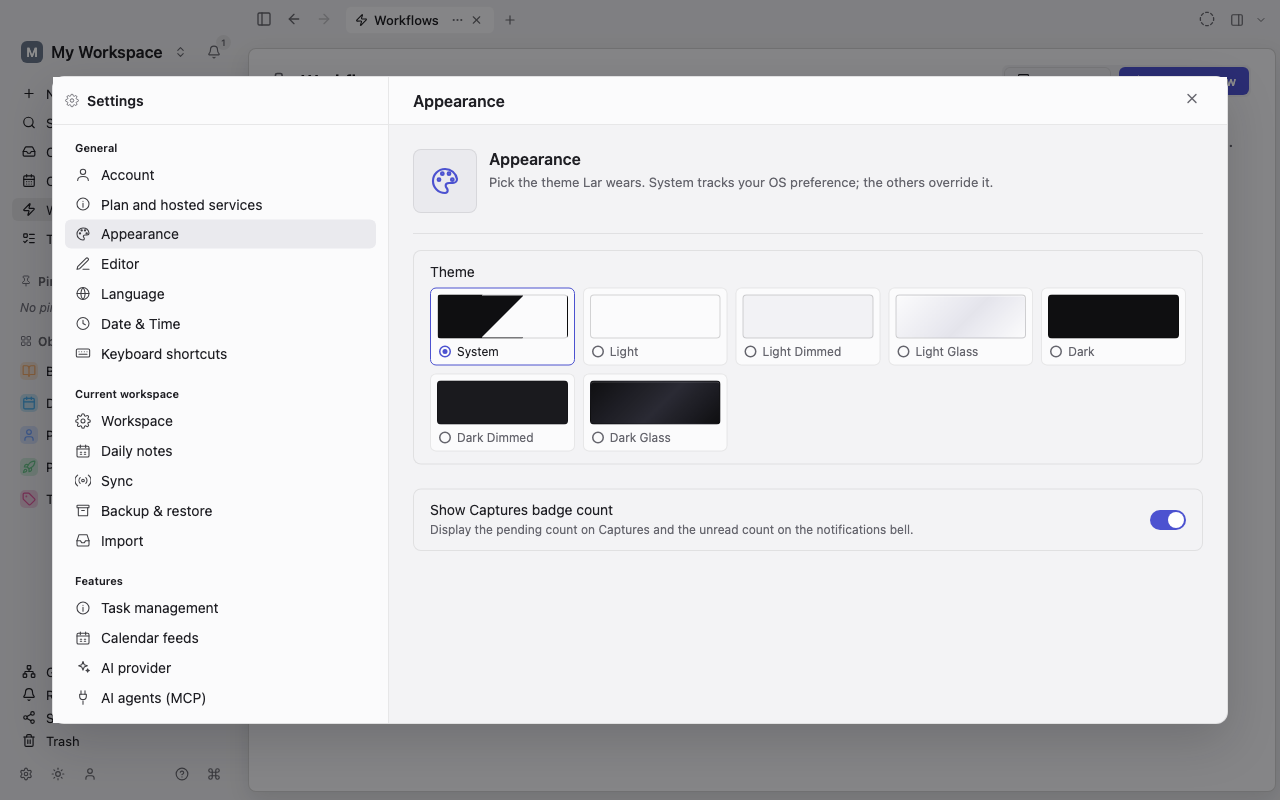
General
Section titled “General”| Page | What you configure |
|---|---|
| Account | Your display name, this workspace’s identity, the device identity behind sharing, and sign-in to a server account |
| Plan and hosted services | Your plan and the hosted services your signed-in account can use |
| Appearance | Theme (System, Light, or Dark); a Flat, Dimmed, or Liquid Glass style for each of the light and dark themes; Show Captures badge count; and Hide note content in reminder notifications |
| Editor | Font size, spellcheck and its language, pasting as plain text, and smart typography |
| Language | Interface language and decimal separator |
| Date & Time | Date format, time format, time zone, and first day of the week, independent of the interface language |
| Keyboard shortcuts | Every shortcut, with more than one binding per command and conflict warnings. See Keyboard shortcuts |
On the iOS and Android apps, a Navigation page chooses which destinations sit in the floating navigation bar. It does not change the desktop sidebar.
Current workspace
Section titled “Current workspace”| Page | What you configure |
|---|---|
| Workspace | The name you see in the workspace switcher |
| Invites | Invite people to this workspace and review requests to join. See Shared workspaces |
| Members | Everyone with access to a shared workspace, their role, and how many devices each has registered. See Shared workspaces |
| Security | Browser only: how the workspace unlocks (device unlock or a passphrase each session), your recovery code, and tips for keeping browser storage durable |
| Daily notes | Automatic creation, carrying over unfinished to-dos, and Task mirroring |
| Sync | This device only, Peer-to-peer, Cloud, or Self-hosted server; your devices and adding a new one; and on desktop, the media download policy |
| Backup & restore | Export the whole workspace, import a backup, and on desktop, restore local database backups and set up automatic export. See Backup & restore |
| Import | The wizard for importing from other tools. See Import & export |
Features
Section titled “Features”| Page | What you configure |
|---|---|
| Task management | Whether Tasks gets its own place in the sidebar |
| Calendar feeds | ICS (iCalendar) subscriptions and, on desktop, connected calendar accounts |
| AI provider | On desktop: your provider key, web search, semantic search, and the activity log. In the browser and on mobile, AI runs through the server’s service instead. See AI assistant & actions |
| AI agents (MCP) | Desktop only: let a local AI agent read the workspace over MCP (the Model Context Protocol) |
| Remote access | Let an approved device run read-only queries against this workspace through your account |
| Automation service | Whether a runner is enrolled to run Workflows on the always-on automation service |
Integrations
Section titled “Integrations”Integrations lists the services Lar can connect to, such as Readwise, Telegram, and Kindle. Each connection has its own page covering credentials, the destination in your workspace, the background schedule, and the external host Lar contacts.
Utility
Section titled “Utility”About Lar shows the version, runtime and storage diagnostics, and legal notices, with Export diagnostics and Report a bug. On desktop it also checks for updates.
Platform differences
Section titled “Platform differences”The browser and mobile apps leave out pages the platform cannot support: your own AI provider key, AI agents (MCP), native file-path actions, and update controls. Security appears only in the browser. Phone-sized browser windows also hide Backup & restore. A missing page means the current platform cannot provide it; your data is still there.
Related: Desktop, web, and mobile and Keyboard shortcuts.