
Tour the app
Lar keeps browsing, writing, and context in separate places: the sidebar to get somewhere, the content area to work, and the side panel to see what connects to the Object in front of you. This page walks through each one.
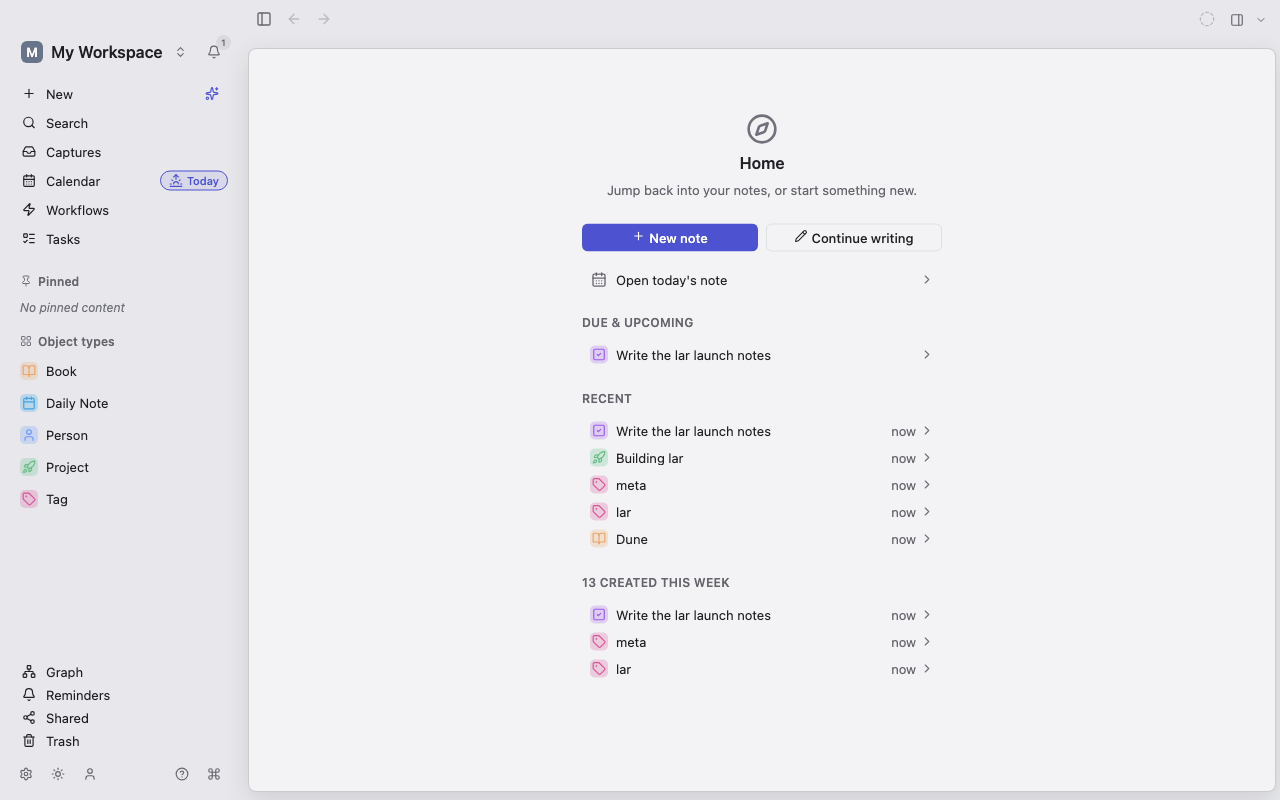
Get around with the sidebar
Section titled “Get around with the sidebar”The sidebar, also called the Library, is where you start browsing. From the top down it has:
- New, to create an Object of any Type in your sidebar, and a button that opens AI Chat.
- Search, Calendar (with a Today shortcut to today’s Daily Note), Tasks, Captures, and Workflows.
- Reminders, Shared, Graph, and Trash.
- Your pinned items, custom sections, Object types, and Collections.
Some entries depend on the platform or on features you turn on. For example, Tasks has its own entry while Settings → Task management is on.
On a phone or a narrow window, a floating navigation bar holds the most frequent destinations. More opens the rest, along with recent Objects, Settings, and actions for the current page.
Work in the content area
Section titled “Work in the content area”The center of the window shows the destination or Object you opened.
- A Type’s page lists its Objects. Switch the layout among List, Wall, Kanban, Gallery, Table, and Embed; each has a shortcut.
- An Object shows its title, Type, Collections, and typed properties in the header. If the Type has a body, the block editor sits below the properties. Some Types, such as Tag, have no body.
See connections in the side panel
Section titled “See connections in the side panel”The side panel shows context without crowding the document. Press Ctrl+\ to move focus into it and back. Its tabs include:
- Details: Linked from (backlinks), Unlinked mentions, Outline, Version history, and loose properties.
- Backlinks, Explore, Graph View, Search, and AI Chat.
You can also open another Object in the side panel, to check a reference without leaving the document you are writing. On narrower layouts, the side panel opens as a sheet or a full-screen view instead.
Keep several things open with tabs
Section titled “Keep several things open with tabs”On desktop, browser-style tabs let you keep several Objects and views open. Pinned tabs survive a restart. Switch tabs with Ctrl+Tab and close one with Ctrl+W.
Back and forward (Ctrl+[ and Ctrl+]) move through the places you visited, separately from tabs.
Search and run commands
Section titled “Search and run commands”Press Ctrl+K, or choose Search in the sidebar, to open the command palette. It finds Objects by title and content, and runs actions such as creating an Object, switching the theme, or opening Settings. For filters by Type or tag, choose Open Search to go to the full Search page.
In the mobile layout, Search opens the Search screen directly; the command palette is part of the desktop layout only.
Change settings
Section titled “Change settings”Open Settings with Ctrl+,. Pages are grouped into General, Current workspace, Features, Integrations, and Utility. Some pages exist only where the platform supports them. For example, only the desktop app can hold your own AI provider key.
Next, create your first Objects, or see the Settings reference.